
Edit your Smart Page
Change your Smart Page's logo, cover, brand colour, contact details and modules. Every change is visible to your guests right away.
Your Smart Page is the page guests open through your NFC sticker, the QR code or your link. Everything you change here applies at once: there is no draft you have to publish separately.
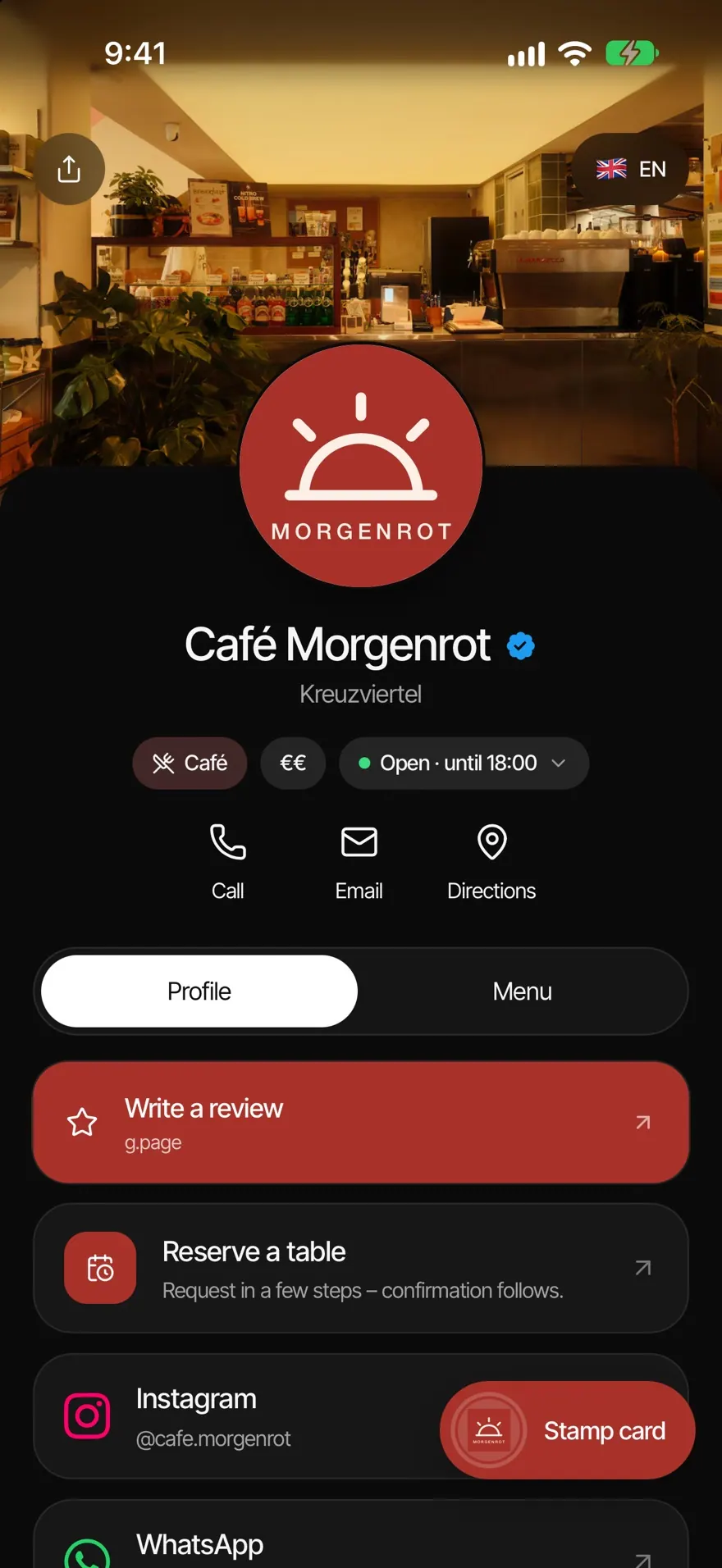
What's in the Smart Page tab
- At the top, your page's card. If you have several locations, swipe between their cards.
- Below it, Preview, Share, Design and the status Live or Offline.
- Links, "Finish your page", "Edit page" and, depending on your plan, "Modules".
Change your logo and cover
- In Smart Page, tap your logo or your cover on the card. You can also do this under Smart Page›Edit page›Appearance.
- Choose Photo Library, Take Photo or Choose file (up to 25 MB).
- Move the crop into place. For a logo, Whole logo helps when nothing should be cut off.
- Tap Apply. The image appears on your page straight away.
Your first logo sets a matching brand colour automatically, unless you have already chosen one.
Change your brand colour
- Tap Design, then Choose colour.
- Pick a colour under "From your logo" or "Recommended", or set your own under Custom colour.
- Tap Save. Your page's buttons and highlights now use this colour.
Contact details and modules
- Under Smart Page›Edit page›Quick actions you enter phone, WhatsApp, email and address. Use the switch to hide an entry; your details stay saved. Phone numbers need the country code, for example +49.
- Under "Modules" you turn Online booking (Booking or Complete plan) and Loyalty programme (Loyalty or Complete plan) on or off for your page.
Common questions
Do I need to save? Links and quick actions save automatically. Screens such as brand colour or opening hours have Save at the top right.
Can I change my business name? No, it is fixed after setup. You can change the branch name, see Change branch name and address. If you need a different business name, write to us via Help and contact.
How do I see my page the way guests do? Tap Preview.