
Edit dishes and categories
Add and change dishes, set prices and sizes, rename categories and decide the order of your menu.
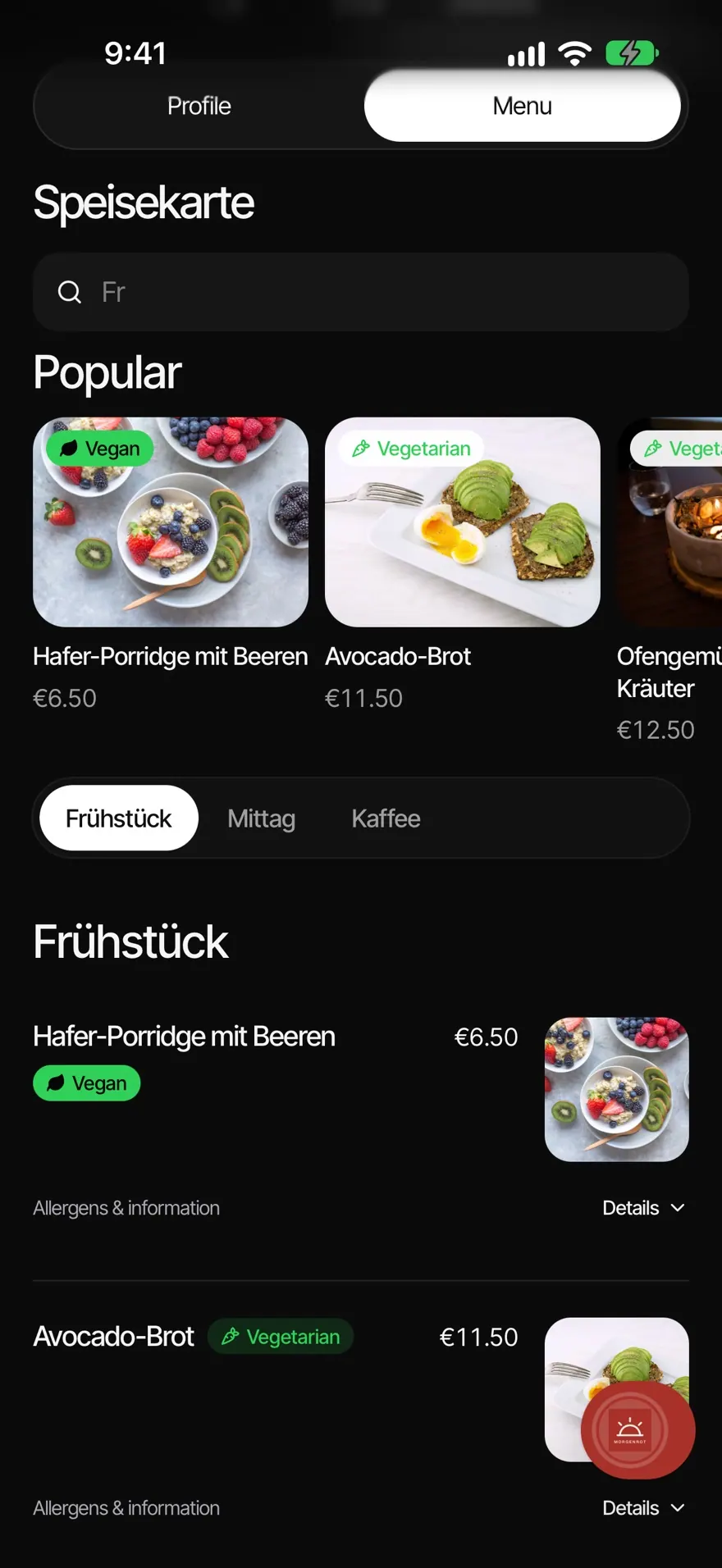
You edit the menu right in your guests' view. Every change goes into the draft first. Guests only see it after you next publish.
Add or change a dish
- Open Smart Page›Edit page›Menu.
- Tap a dish to open it. For a new dish, tap Add item under a category.
- Enter the Item name and, if you like, a description. Use Photo to add a picture.
- Tap Price. Choose Fixed, Sizes or On request. For sizes, tap Add size; for surcharges, tap Add extra.
- Use Category to move the dish and Number to give it a number such as "12a".
- Tap Done. If the bar at the bottom says "Not saved", tap Save.
Under On your menu you control:
- Show in menu: shows or hides the dish.
- Show under “Popular”: shows the dish with its photo at the very top. This needs a photo and works for at most 8 dishes.
To delete a dish, tap Remove item.
Categories and order
- New category: tap + at the top, then Add category.
- Rename, hide or delete a category: tap the category's name, then Edit.
- Move a dish: press and hold it and choose Move up or Move down.
- Arrange everything at once: tap the tools button at the bottom right, then Order.
Adjust all prices
- Tap the tools button, then Adjust prices.
- Choose −5 %, +3 %, +5 % or +10 %. Prices are rounded to 10 cents. You can change single prices below.
- Tap the save button, for example Save 12 prices.
Common questions
Can I have more than one menu, for example food and drinks? Yes. Tap +, then Add menu. Once you have several, press and hold a menu's name to Rename it.
What does "A newer version was saved on another device" mean? Someone changed the menu at the same time. Discard your changes when leaving to load the newer version.
Was this helpful?