
Designing your stamp card
Three steps to the card in your guests' Wallet: style, colour, logo and name. The app writes the texts on the back for you.
Here you decide how your stamp card looks in your guests' Wallet. You don't set the reward or the number of stamps here; they belong to the campaign (see Starting and planning campaigns).
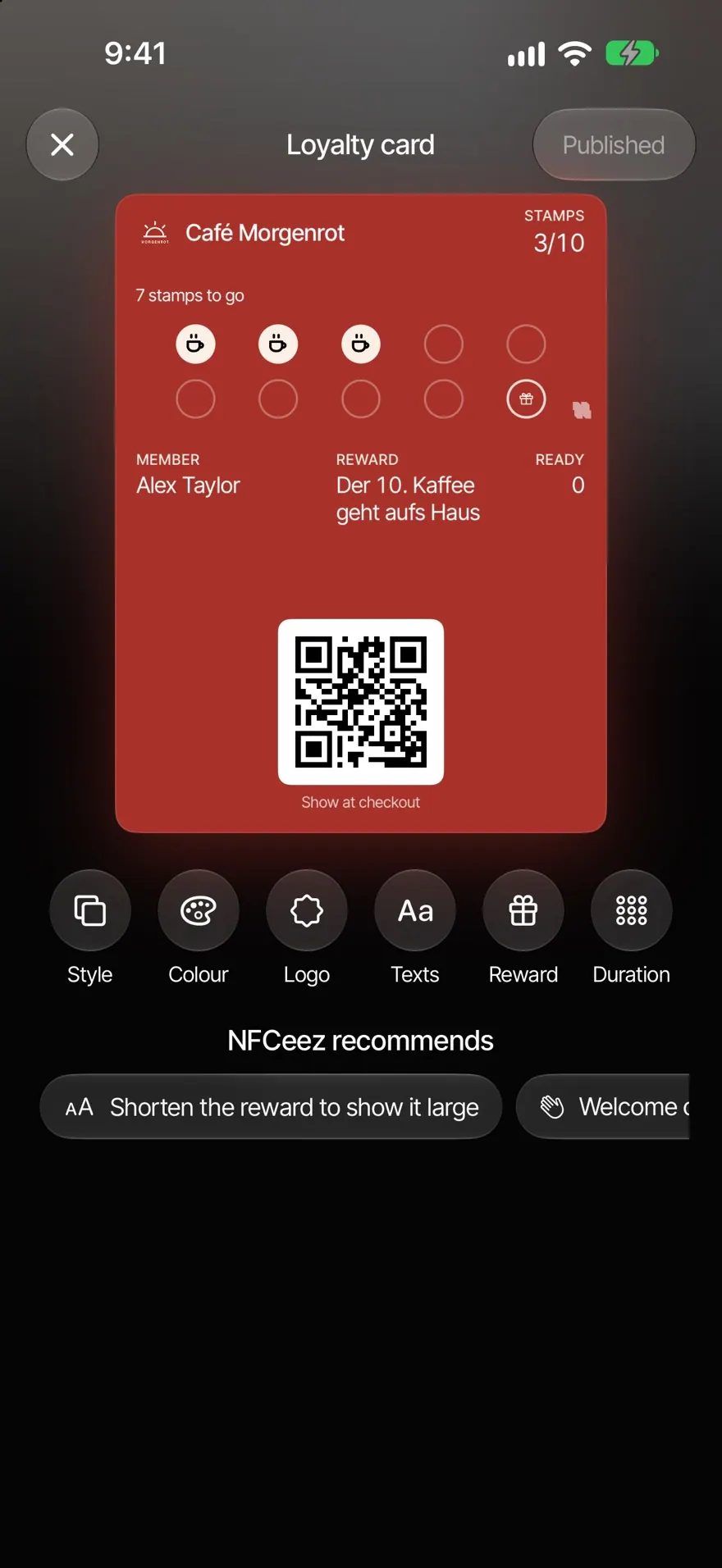
Open the card
- If your card is already live: open Guests›Loyalty›Your card in the "Programme" section.
- Before the first campaign: under Guests›Loyalty, tap Design the look first.
- When you start any new campaign, the same three steps come up automatically.
Three steps
- Style: At the top, choose With icons or With text, then swipe through the cards. The card in the middle is chosen. Styles with icons also let you pick a symbol, such as Cup, Star or Scissors.
- Colour: Your brand colour from the Smart Page comes first. Next to it are suggestions and Custom colour. The text adjusts by itself so it stays readable.
- Logo and name: Choose Smart Page logo, Choose image, SVG file or No logo. The app only removes the background; your logo keeps its colours. Type the name at the top of the card directly, up to 24 characters. If you leave it empty, your business name is shown.
Save and publish
- Before the first campaign, tap Save. The card starts with the first campaign.
- On a live card, owners and managers tap Publish and confirm "Publish across all branches?". Collected stamps are kept. Wallet cards get the new design with their next update.
- Editors tap Save. This saves a draft, which an owner or manager can publish.
- If you leave the card with changes, you can choose Save as draft, Discard or Keep editing.
Common questions
My logo isn't accepted. If you see "The logo contains text. Convert the text to outlines in your design app and upload it again.", use a picture of your logo instead. For "This image can't be turned into a logo.", a logo on a plain or transparent background helps. Pictures can be up to 25 MB, SVG files up to 500 KB.
Can I change the number of stamps here? No. It stays fixed while a campaign runs. For a different number, plan a new campaign.